
This guide walks you through creating and setting a custom avatar in KingdomVR using Ready Player Me and the Substrata client.
Before setting up your avatar, make sure you have the latest version of the Substrata client installed. Download it for your platform below:
Once installed, open the client and make sure it is up to date before proceeding. NOTE: If your avatar has crossed arms at the end of this guide, it is because you dont have version 1.6.31 or later installed.
Go to https://readyplayer.me/avatar in your browser.
Customise your avatar however you like — you can change the face, skin tone, hair, clothing, and more using the category icons on the right-hand panel.
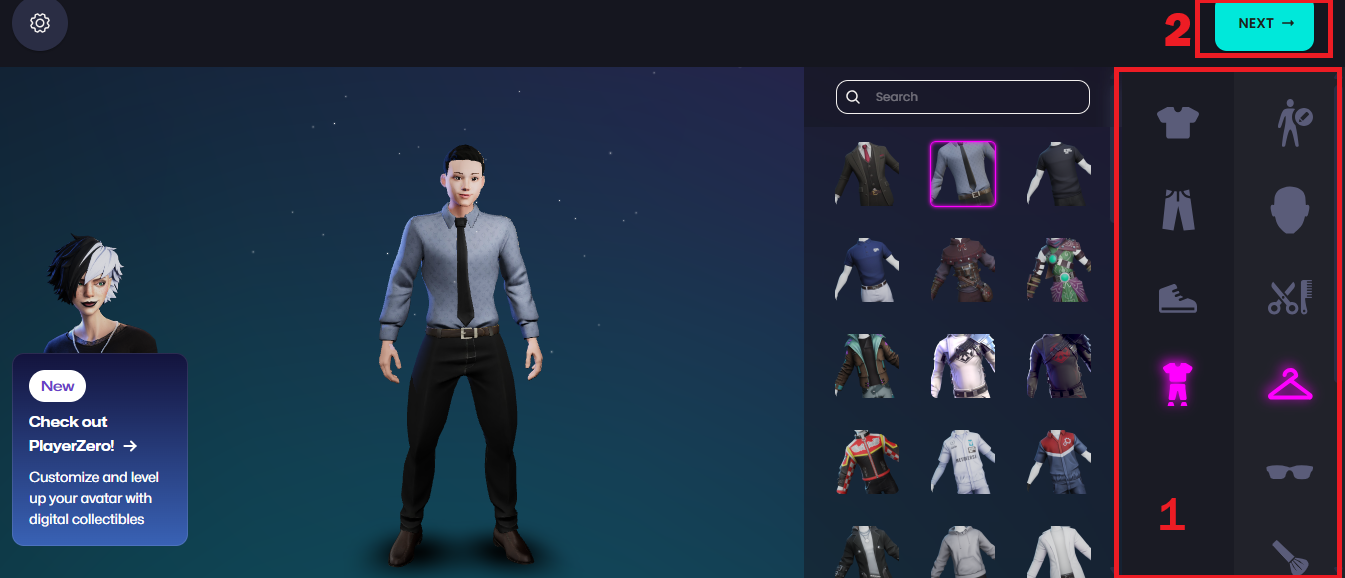
When you are happy with your avatar, click the Next button (top-right of the screen).
A dialog will appear with a shareable link to your avatar's .glb file. Click Copy to copy the URL.
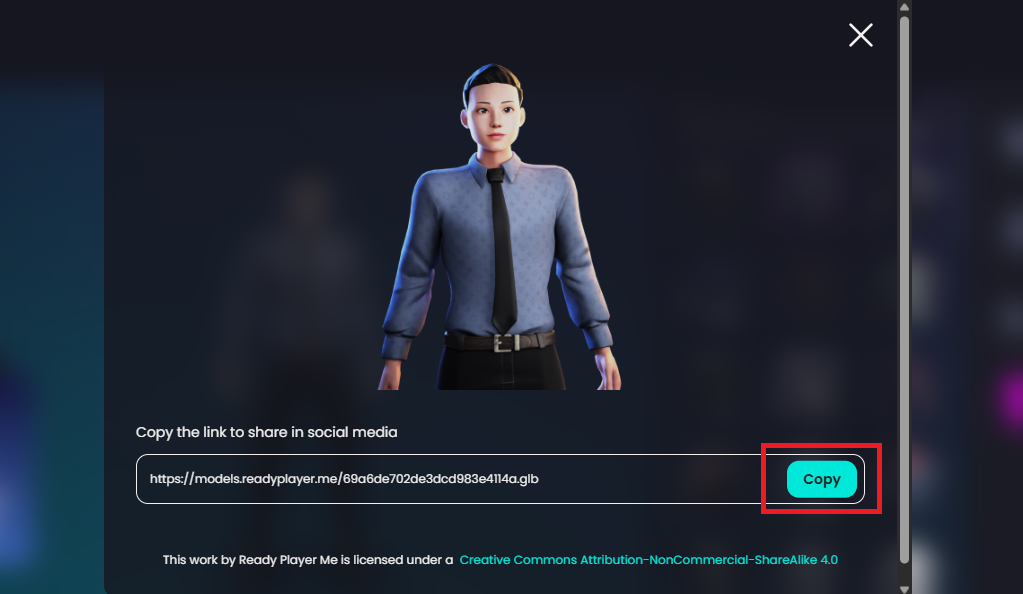
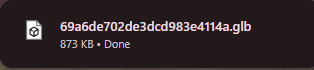
Open a new browser tab, paste the copied URL into the address bar, and press Enter. Your browser will download the .glb file to your Downloads folder.

Open the Substrata client. In the menu bar, click Avatar → Avatar Settings.
In the Avatar Settings dialog, click the Browse button next to the Model field.
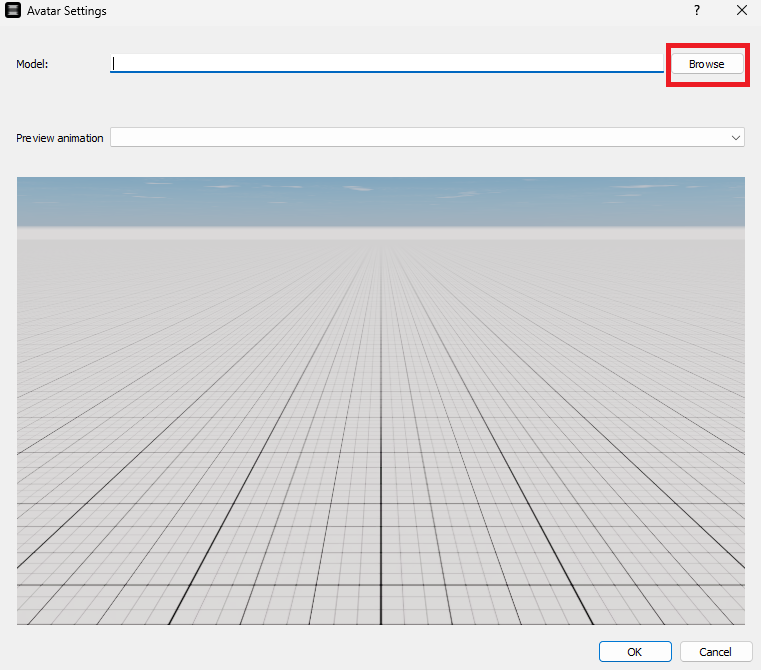
Navigate to your Downloads folder, select the .glb file you just downloaded, and click Open.
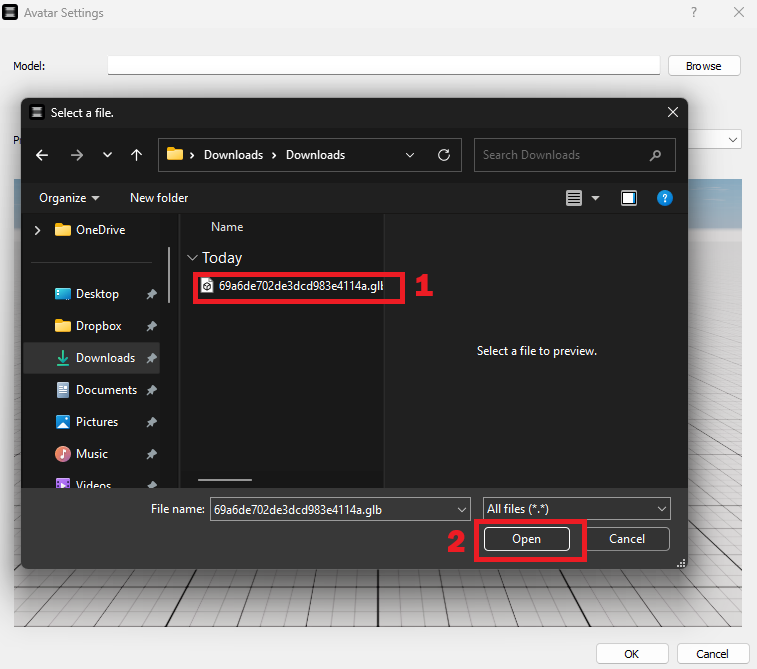
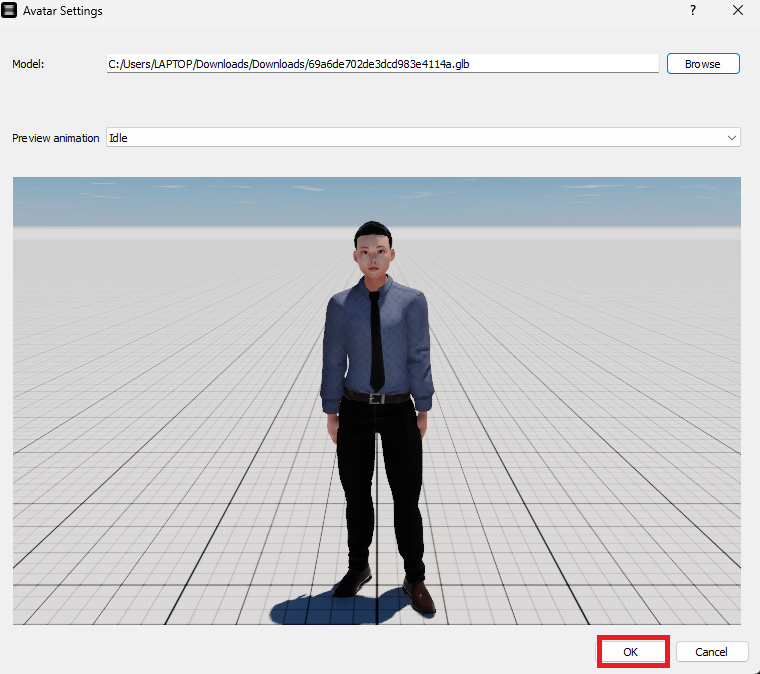
Your avatar will appear in the preview window. Once you are happy with it, click OK.
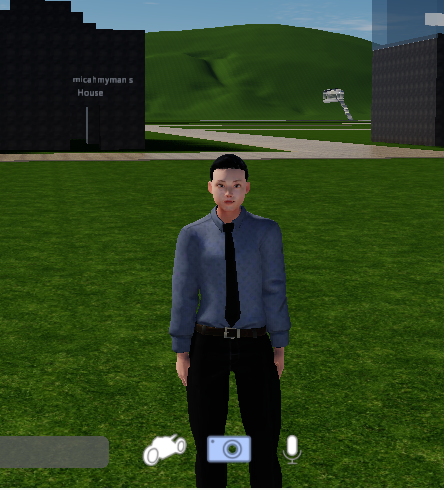
Your custom avatar will now appear in KingdomVR for everyone to see!
You can repeat this process at any time to update your avatar — just visit Ready Player Me again, make your changes, and load the new .glb file.